Mastering The Linux Shell – Processes
So what constitutes a process on your Linux system? The short answer is : Everything.
In your long and illustrious career as Linux gurus, you are going to hear a lot about processes, process status, monitoring processes, or even killing processes. Gasp! Reducing the whole discussion to its simplest form, all you have to remember is that any command we run is a process. Processes are also sometimes referred to as jobs.
The session program which executes our typed commands (the shell, or terminal if you prefer) is a process. The tools I am using to write this article such as my desktop, the browser, the server somewhere out on the internet . . . these are creating several processes and sub-processes. Every terminal session you have open, every link to the Internet, every game you have running, the little clock in the corner; all these programs will generate one or more processes on your system. In fact, there can be hundreds, even thousands of processes running on your system at any given time. To see your own processes, try the following command.
fullhouse ~ # ps

  PID TTY          TIME CMD
14759 pts/4    00:00:00 sudo
14760 pts/4    00:00:00 bash
14803 pts/4    00:00:00 ps
For a bit more detail, try using the “u” option to the ps command. This will show all processes owned by you that currently have a controlling terminal. Even if you were running as root, you would not see system processes in this view. If you add the “a” option to that you’ll see all the processes running on that terminal, in this case revealing the sub-shell that did the su to root.
fullhouse ~ # ps au

USER       PID %CPU %MEM    VSZ   RSS TTY      STAT START   TIME COMMAND
root      1534  0.0  0.0  19976   972 tty6     Ss+  Apr09   0:00 /sbin/getty -8
root      1689  6.0  1.0 143544 59984 tty8     Rs+  Apr09 161:43 /usr/bin/X :0 v
root      1788  0.0  0.0  11756   816 tty1     Ss+  Apr09   0:00 /sbin/getty -8
mgagne    3254  0.0  0.0  18260  3508 pts/1    Ss+  Apr09   0:00 /bin/bash
mgagne    6770  0.0  0.0  18132  3264 pts/2    Ss   Apr09   0:00 /bin/bash
root     14759  0.0  0.0  69176  2256 pts/4    S    08:55   0:00 sudo -i
root     14760  0.0  0.0  18100  3232 pts/4    S    08:55   0:00 -bash
root     14816  0.0  0.0  14380  1156 pts/4    R+   08:57   0:00 ps au
The most common thing someone will do is add an “x” option as well. This will show you all processes, whether controlled by your terminal or not, as well as those of other users. The administrator will also want to know about the “l” option. This stands for “long” and is particularly useful because it shows the parent process of every process. That’s because every process has another process that launched (or spawned) it. This is the parent process of the process ID. In sysadmin short form, this is the PPID of the PID. When your system starts up, the first process is called “init”. It is the master process and the super-parent of every process that will come until such a time as the system is rebooted. Try this incarnation of the ps command for an interesting view of your system.
fullhouse ~ # ps alxww | more

F   UID   PID  PPID PRI  NI    VSZ   RSS WCHAN  STAT TTY        TIME COMMAND
4     0     1     0  20   0  24580  2584 poll_s Ss   ?          0:01 /sbin/init
1     0     2     0  20   0      0     0 kthrea S    ?          0:00 [kthreadd]
1     0     3     2  20   0      0     0 run_ks S    ?          1:23 [ksoftirqd/0]
1     0     5     2   0 -20      0     0 worker S<   ?          0:00 [kworker/0:0H]
1     0     7     2   0 -20      0     0 worker S<   ?          0:00 [kworker/u:0H]
1     0     8     2 -100  -      0     0 cpu_st S    ?          0:00 [migration/0]
1     0     9     2 -100  -      0     0 watchd S    ?          0:00 [watchdog/0]
1     0    44     2   0 -20      0     0 rescue S<   ?          0:00 [crypto]
1     0    53     2   0 -20      0     0 rescue S<   ?          0:00 [kthrotld]
1     0    57     2  20   0      0     0 worker S    ?          1:12 [kworker/1:1]
1     0    58     2  20   0      0     0 scsi_e S    ?          0:00 [scsi_eh_0]
Again, this is a partial listing. You noticed, of course, that I threw a couple of new flags in there. The double “w“, or “ww” will display each process’ command line options. A single “w” will truncate the options at a half a line.
The columns you see there tell us a little bit more about each process. The “F” field indicates the process flag. A 040 in that position indicates a process that forked, but didn’t exec, whereas a 140 means the same, but that super-user privileges were used to start the process. The UID field represents the user ID while PID and PPID are the process and parent process ID that we talked about earlier. PRI and NI (priority and nice number) will feature later when I cover performance issues in a later article. In fact, there are quite number of information flags for the ps command. Every person who administers a system should take some time to read the man page. More importantly, play with the command and the various flags. You will be enlightened.
Forests and Trees
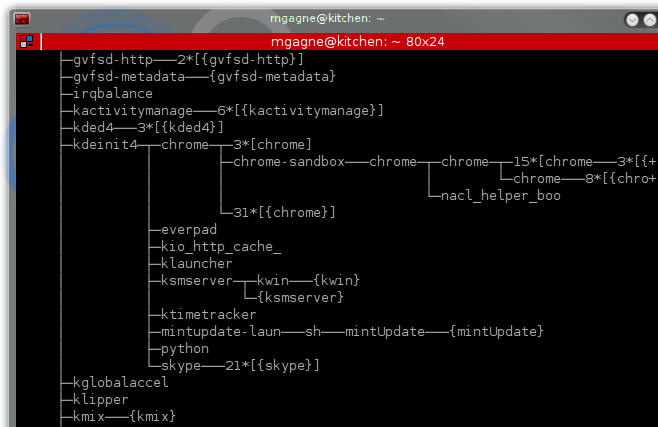
With all the information displayed through ps, you can be forgiven if your head is starting to hurt a bit. It is a little like trying to see the forest but being overwhelmed by the sheer number of trees. And yet, all these processes are linked in some ways. Luckily, your stock Linux distribution contains tools to make this easier. One of them is called “pstree”. Here’s a sample of what you get by simply typing the command and hitting ENTER.
fullhouse ~ # pstree -A

init-+-GoogleTalkPlugi---5*[{GoogleTalkPlugi}]
     |-NetworkManager-+-2*[dhclient]
     |                |-dnsmasq
     |                `-2*[{NetworkManager}]
     |-acpid
     |-akonadi_control-+-5*[akonadi_agent_l---{akonadi_agent_l}]
     |                 |-akonadi_archive
     |                 |-akonadi_imap_re
     |                 |-akonadi_maildis
     |                 |-akonadi_mailfil
     |                 |-akonadi_nepomuk---{akonadi_nepomuk}
     |                 |-akonadiserver-+-mysqld---36*[{mysqld}]
     |                 |               `-22*[{akonadiserver}]
     |                 `-3*[{akonadi_control}]
     |-at-spi-bus-laun-+-dbus-daemon
     |                 `-3*[{at-spi-bus-laun}]
     |-at-spi2-registr---{at-spi2-registr}
     |-atd
     |-avahi-daemon---avahi-daemon
     |-bluetoothd
     |-colord---2*[{colord}]
     |-console-kit-dae---64*[{console-kit-dae}]
     |-cron
     |-cupsd
     |-2*[dbus-daemon]
     |-dbus-launch
     |-dnsmasq
     |-dropbox---18*[{dropbox}]
     |-gconfd-2
     |-6*
     |-gvfsd---{gvfsd}
     |-gvfsd-fuse---4*[{gvfsd-fuse}]
     |-irqbalance
     |-kactivitymanage---6*[{kactivitymanage}]
This is only a partial listing, but notice that everything on the system stems from one super, ancestral process called “init”. Somewhere under there, I have a login that spawns a shell. From that shell, I start an X window session from which spawns my desktop environment and so on and so on. There can be applications from different desktop environments under that. I’m running KDE Plasma but I also have GNOME applications in my mix. Notice that I had a “-A” flag on the pstree comment. This makes the output ASCII friently so I can use it in a graphical terminal session. Or on a printout. To see a more *ahem* graphical version of the comman, look at the screenshot image that introduces this post. It’s the same command, minus the ASCII flag.
If you want a similar output, but in somewhat more detail, we can go back to our old friend, the ps command. Try the “f” flag which, in this case, stands for “forest”, as in forest view. Once again, this is a partial listing, but unlike the pstree listing, you also get process IDs, running states, and so on.
[root@testsys /root]# ps axf
    1 ?        Ss     0:01 /sbin/init
  390 ?        S      0:00 upstart-udev-bridge --daemon
  392 ?        Ss     0:00 /sbin/udevd --daemon
  757 ?        S      0:00  \_ /sbin/udevd --daemon
 2557 ?        S      0:00  \_ /sbin/udevd --daemon
  593 ?        Ss     0:00 /usr/sbin/sshd -D
  876 ?        Sl     0:12 rsyslogd -c5
  913 ?        S      0:00 upstart-socket-bridge --daemon
  919 ?        Ss     0:01 smbd -F
 1073 ?        S      0:00  \_ smbd -F
15499 ?        S      0:00  \_ smbd -F
15500 ?        S      0:00  \_ smbd -F
 1027 ?        Ss     0:12 dbus-daemon --system --fork
 1039 ?        Ss     0:00 /usr/sbin/modem-manager
 1042 ?        Ss     0:00 /usr/sbin/bluetoothd
 1058 ?        Ss     0:01 /usr/sbin/cupsd -F
 1062 ?        S      0:09 avahi-daemon: running [fullhouse.local]
 1063 ?        S      0:00  \_ avahi-daemon: chroot helper 1152 ?        Ss     0:04 /sbin/wpa_supplicant -B -P /run/sendsigs.omit.d/wpasupplic
 1397 ?        Ss     0:05 nmbd -D
 1414 ?        Ss     0:00 /usr/sbin/winbindd -F
 1447 ?        S      0:00  \_ /usr/sbin/winbindd -F
 1514 tty4     Ss+    0:00 /sbin/getty -8 38400 tty4
 1519 tty5     Ss+    0:00 /sbin/getty -8 38400 tty5
 1529 tty2     Ss+    0:00 /sbin/getty -8 38400 tty2
 1531 tty3     Ss+    0:00 /sbin/getty -8 38400 tty3
 1532 ?        Ss     0:00 kdm
 1689 tty8     Rs+  165:09  \_ /usr/bin/X :0 vt8 -br -nolisten tcp -auth /var/run/xau
 1911 ?        S      0:00  \_ -:0
 2043 ?        Ss     0:00      \_ /bin/sh /usr/bin/startkde
 2111 ?        Ss     0:00          \_ /usr/bin/ssh-agent /usr/bin/dbus-launch --exit
 2315 ?        S      0:00          \_ kwrapper4 ksmserver
 1534 tty6     Ss+    0:00 /sbin/getty -8 38400 tty6
In the Linux world, you can find a number of programs devoted to deciphering those numbers, thereby making it possible to find out what processes are doing, how much time and resources they are using to do it, and making it possible to manage the resultant information.
Performance is a topic I sometimes refer to as the Holy Grail because as system administrators, it is invariably what we are forever searching for. Despite having faster machines with more processor, more memory, and more disk than some admin 20 years ago could have ever dreamed of, we still manage to drive that super fast mega-machine into the ground. How do we extract just that little bit more from our machines? How do we make them faster? Stronger? These are such important questions that will devote another article to the subject, but on another day.
Interrupting, suspending, and restarting processes
Once a day or so, I invariably start a process that I think is going to take more than a few seconds. It will be something like this : parsing a large log file, scanning for some text, extracting something else, sorting the output, and finally sending the whole thing to a file. All very ad hoc in terms of reporting. The trouble is this. Two and a half minutes have gone by and I am starting to get a little impatient. Had I thought that the process would take a while, I might have started it in the background. If I was running on my graphical desktop, I’d just start another terminal window, but maybe I’m logged in at the console. Text only, for real this time.
When you start a process (by typing a command name and hitting ENTER), you normally start that process in the foreground. In other words, you terminal is still controlling the process and the cursor sits there at the end of the line until the process completes. At that point, it returns to the command or shell prompt. For most (not all) processes, you can run things in the background, thus immediately freeing up your command line for the next task. You do that by adding an ampersand to the end of the command before you hit ENTER.
# sh long_process &
Unfortunately, I’ve already confessed to you that I wasn’t thinking that far ahead and now I am sitting here looking at a flashing cursor wondering whether I did something wrong and just how long this thing will take. Now, I don’t want to end the process, but I wouldn’t mind being able to temporarily pause it so I can have a look at its output, then decide whether I want to continue. As it turns out, you can do precisely that with a running process by using the Control-Z key sequence.
# sh long_process
Ctrl-Z
[1]+  Stopped                 sh long_process
The process is now suspended. In fact, if you were to do a “ps ax” and you looked for “long_process”, you would see this.
11091 ?        S      0:00 kdeinit: Running...
11127 tty1     S      0:00 rxvt -bg black -fg white -fn fixed
11128 pts/0    S      0:00 bash
11139 pts/0    S      0:00 ssh -l www-date mywebsite
11177 ?        S      0:00 smbd -D
11178 ?        S      0:00 smbd -D
11219 pts/2    T      0:01 sh long_process
That “S” you see in the third column of most of these processes means they are sleeping. Yes, it’s true; at any given moment or snapshot of your system, almost every single process will be sleeping and a small handful will show up with an “R” to indicate that they are currently running or runnable, sometimes referred to as being in the run queue. The “T” you see beside our suspended process means that it is traced, or suspended.
Two other states you might see processes in are “D” and “Z”. The “D” means that your process is in an uninterruptible sleep and it is likely to stay that way (usually not a good sign). The “Z” refers to a process that has gone zombie (and possibly that the zombie apocalypse is near). It may as well be dead and probably will be just as soon as someone gets that message across. There’s a command called “jobs”, which will list the jobs you have running in the background, as well as the status of those jobs.
$ jobs
[1]-  Running                 Eterm &
[2]+  Stopped                 xterm
Getting back to our suspended process, we have a few choices. We could just restart it from where it left off by typing “fg” at the shell prompt. In other words, continue the process in the foreground. The second option is to type “bg” which tells the system (you guessed it) to run the suspended process in the background. If we were to do that, the process would restart with an ampersand at the end of the command just as we did earlier.
[root@testsys /root]# bg
[1]+ sh long_process &
Our other option is to terminate the process, or kill it. As exciting as killing processes might sound and as ready as you might be to unleash your process killing prowess on those unsuspecting jobs, this is where I leave it for today. That’s because there’s a lot more to killing processes than just killing them. If you know what I mean. Sort of. Anyhow, I’ll explain on Monday. If you wish to comment, please do so here on Google Plus or here on Facebook. Remember that you can also follow the action on CookingWithLinux.com where it’s all Linux, all the time; except for the occasional wine review. Also, make sure you sign up for the mailing list over here so that you’re always on top of what you want to be on top of. Until next time . . .
A votre santé! Bon appétit!